Drum sound design
When the selected track is a drum track, the Sound Design Track pane shows Drum Settings: kit choice and per-pad tuning. Open it from Sound Design or by tapping Pads on the Drums performance screen (same pane on iPhone; iPad focuses the right pane). Kit and pad settings are per track — every drum track has its own kit and its own mixer strip.
Choosing a kit
Tap the kit row at the top of Drum Settings, or the kit pill above the pad grid in Drums mode (grid icon + kit name). Both open the same kit picker sheet — a scrollable list of installed kits (for example arc-909, arc-lo-fi-1, arc-basic-1, arc-nature-1). arc-909 is the default kit on first launch when it's installed.
- Tap a kit row to load it onto the selected track and dismiss the sheet
- The selected track's kit shows a checkmark beside its name; pad count stays right-aligned
- Kit choice is saved per track with the current loop — different drum tracks can run different kits
- Switching to a different kit resets per-pad tuning (volume/pan/pitch) — those settings belong to the old kit's sounds, not the pad positions. Re-selecting the same kit keeps them
If a song references a kit that is no longer installed, ARC-24 loads your default kit instead (usually arc-808). Drum recordings are kept, but hits may play different sounds because loops store pad positions, not sample names.

Per-pad settings
Open per-pad volume, pan, and pitch in either place:
- Drums performance screen — tap the Pads pill next to the kit pill above the grid (on iPhone this opens the same settings as a sheet; on iPad it focuses the right pane)
- Sound Design → Track (with a drum track selected) — the pad grid sits below the kit row
Both paths show the same controls.
Tap a pad in the grid to select it (and hear it — previews never record). The selected pad gets an orange ring, and pads with tweaked settings show a small dot in the corner. Below the grid, one panel edits the selected pad with three knobs:
| Knob | What it does |
|---|---|
| Volume | How loud this pad is in the mix |
| Pan | Left/right placement |
| Pitch | Tune up or down (±12 semitones) |
Drag a knob up or down to adjust it; double-tap a knob to reset just that control. Use Reset on the panel to restore the whole pad, or Reset All for every pad.

Drum effects (FX)
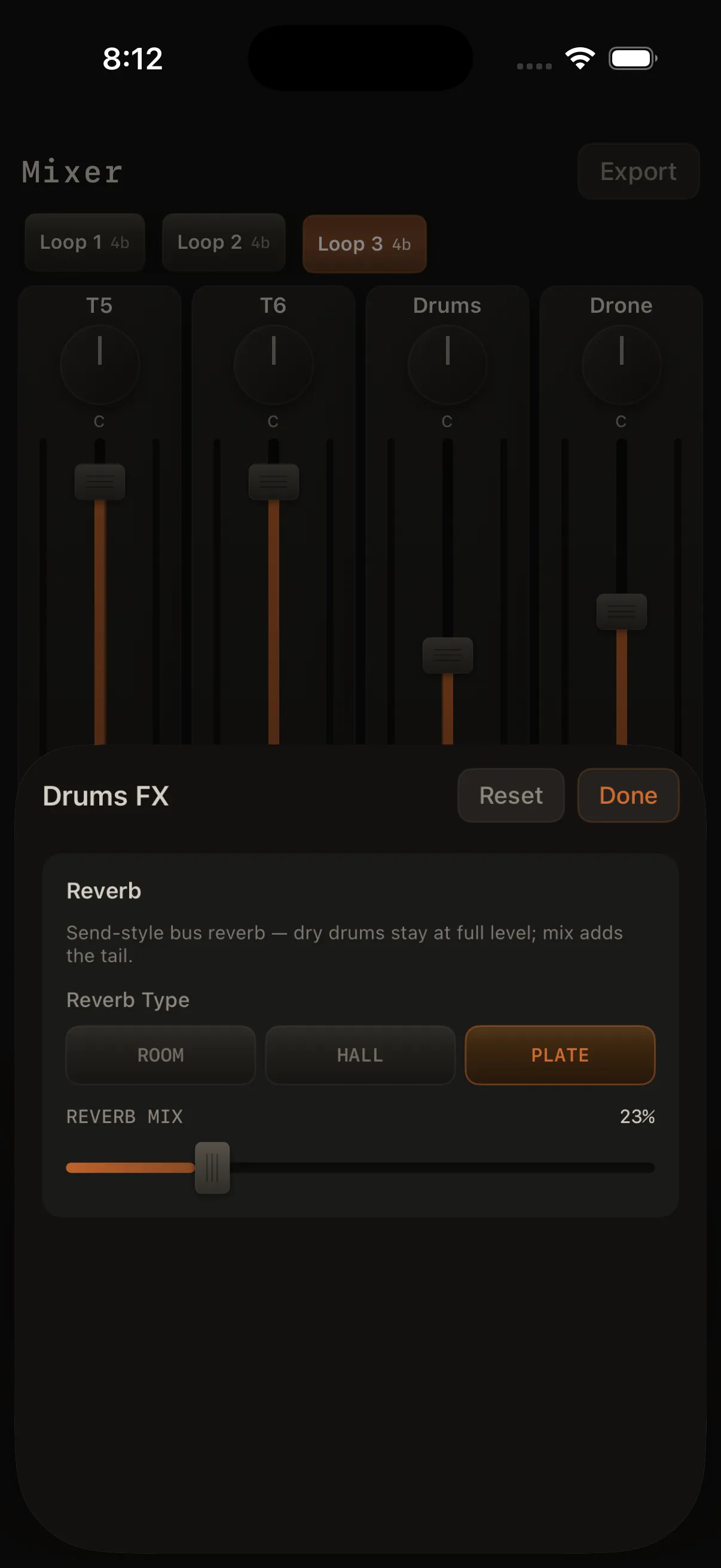
Drum tracks get the same full channel chain as every other track — no more bus-reverb-only limit. Open the FX sheet from:
- Mixer → FX on the drum track's strip
- FX in the extras row below the pads while Drums mode is active
The rack includes Character, filter, dynamics, distortion/bit-crush/ring mod, flanger, BPM delay, tone reverb, and Atmosphere (a real decaying reverb tail — the closest match to the old bus reverb). 3-band EQ is on the same strip. All of it saves with the loop; use Reset in the sheet to clear.
Drums vs synth tracks
- Drum hits record onto the selected drum track's loop (T1–T8), like any other instrument
- Quantize is on by default for drum tracks (1/16 at 100%) — adjust it in the same pane's Recording section
- Level, pan, mute, solo, EQ, and FX are on the drum track's normal Mixer strip
Pad grid layout
| Pads in kit | Columns | Typical layout |
|---|---|---|
| 1–16 | 4 | 16 pads → 4×4 |
| 17–24 | 5 | 20 pads → 5×4 |
| 25+ | 8 | very large kits |
How drum samples behave
Each pad plays a short sample — one hit per tap, even if you hold your finger down. For more variety, use different pads or adjust pitch on a pad.