Interface overview
ARC-24 centers on a performance screen where you play and record. Mixer, Sound Design, and Setup live in the other tabs (bottom bar on iPhone: Playback → Mixer → Sound Design → Setup; bottom of the iPad right pane in the same order minus Playback).
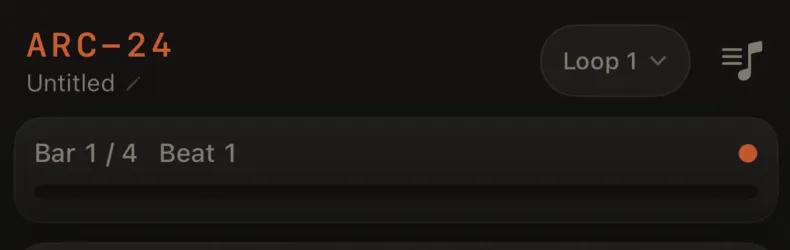
Header bar
At the top of the performance screen:
| Element | Purpose |
|---|---|
| ARC-24 | App name |
| Song name | Your project; tap to rename when saved |
| Loop pill | Appears when saved — switch, duplicate, or manage loops |
| Help | Dim ? to the left of the song list — Quick Start, documentation, and Feedback & Support |
| Song list | Open, save, and manage songs |
Bottom navigation (iPhone)
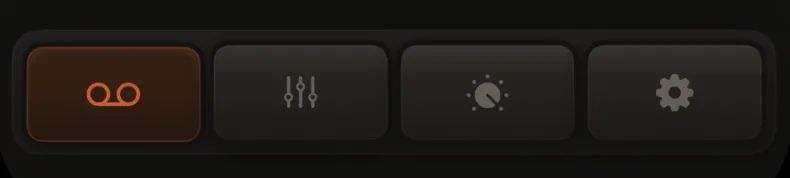
| Tab | What you'll find |
|---|---|
| Playback | Pads, transport, extras tools, recording controls |
| Mixer | Levels, pan, EQ, insert FX, live loop switching — plus the control bar (play, record, arm, BPM) at the bottom |
| Sound Design | The selected track's instrument (synth, drums, or sampler) |
| Setup | Key, scale, loop length, labels, help |
Tab order is Playback → Mixer → Sound Design → Setup. Swipe left from Playback lands on Mixer first.
Swipe left or right on the main area to jump between tabs.
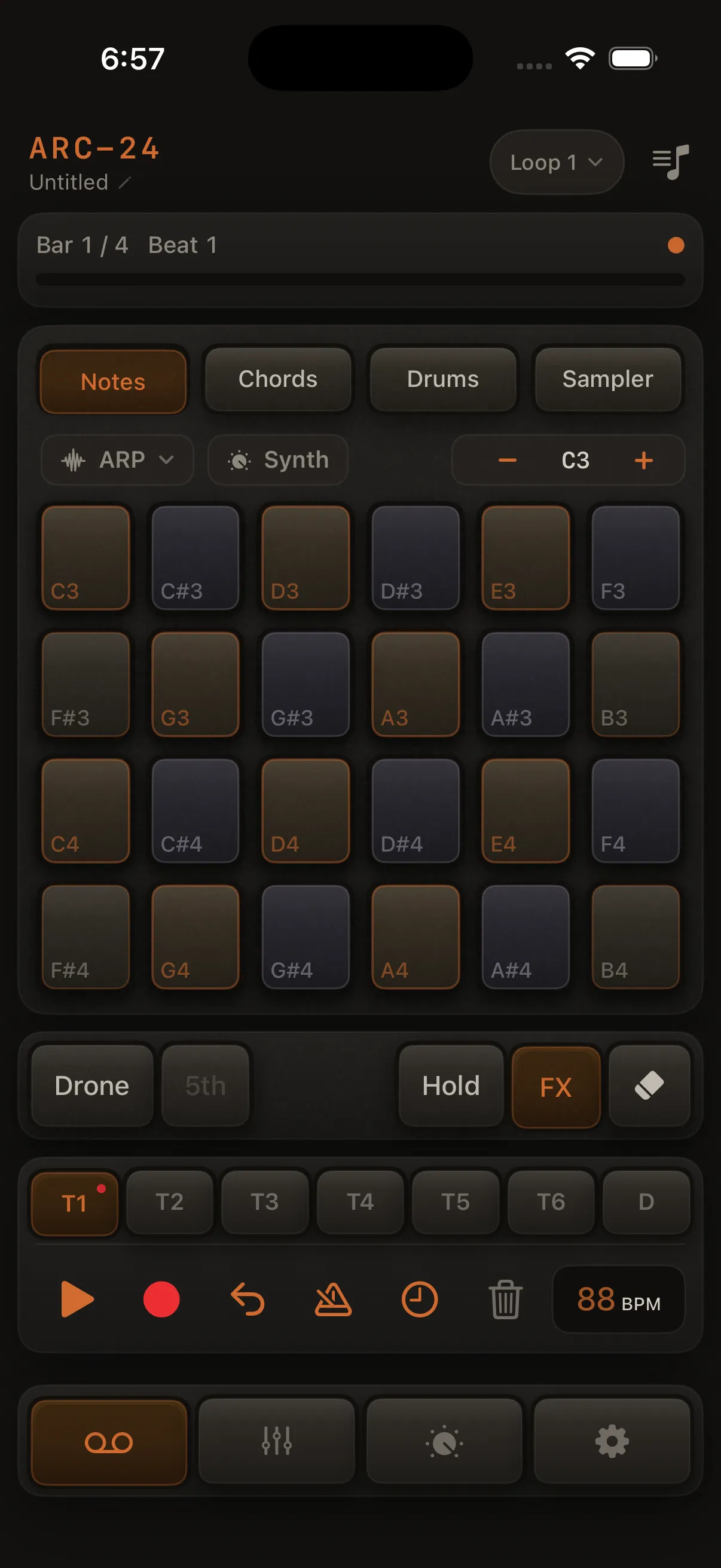
Playback screen (top to bottom)
- Header — song and loop controls
- Timeline — where you are in the loop; shows recording and count-in
- Mode selector — Notes · Chords · Drums · Sampler
- Pad grid — where you play (in Drums mode: kit pill + Pads pill above the grid)
- Extras row — Left: Hold (Notes) · Pulse (Notes/Drums — rate picker) · Grid editor (when the selected track has recordings). Right: FX (selected track's FX sheet) · Chop (Sampler, Pads layout — scissors) · Clear pad (Sampler, dashed-square) · Erase
- Control bar — tracks, play, record, undo, metronome, tempo, and more
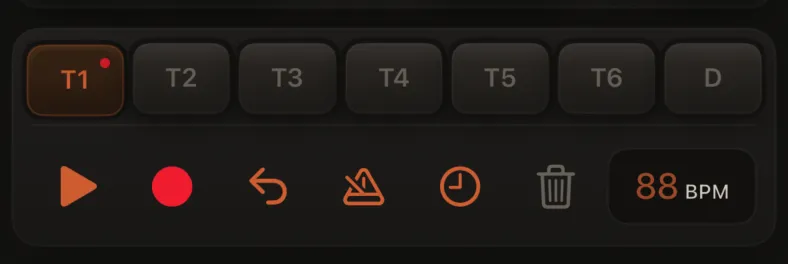
Control bar
| Control | What it does |
|---|---|
| T1–T8 | Select which track you're working on (any mode) |
| Play / Stop | Start or stop the loop |
| Arm | Turn recording on for the selected track |
| Undo | Undo erases, then undo last recording |
| Metronome | Click on each beat while playing |
| Preroll | Four-beat count-in before recording |
| Clear | Erase all recordings on the armed track (asks to confirm) |
| BPM | Change tempo (default 88) |
The arm button always records the selected track, whatever the mode — Notes, Chords, Drums, or Sampler. Tapping a track that already holds recordings switches the performance screen to that track's instrument automatically, so the pads always match the track you're on.
Sound Design
Sound Design is Track-only. The pane follows the selected track's instrument:
- Synth Settings — recipes, oscillators (up to 2 per voice), envelope, filter, LFO, plus a Preview keyboard that doesn't record. All channel effects (tone reverb, Atmosphere, Character, Motion, delay, inserts) are in Mixer → FX.
- Drum Settings — kit picker + per-pad volume/pan/pitch (the Pads pill on the performance screen opens the same pane)
- Sampler Settings — just the Recording section. Sample pads, Keys mapping, Speed / Length, and the Keys source are all edited on the Sampler performance screen, not here.
Every Track pane ends with a Recording section: quantize (grid, strength, swing) and humanize for that track.
Mixer
The Mixer tab shows a Mixer title in the header (left), with Export on the right.
On iPhone, the control bar (play, record, arm, undo, metronome, BPM) sits at the bottom of the Mixer tab so you can mix and drive transport without switching back to Playback.
- Eight track strips (T1–T8) — volume, pan, M / S (mute/solo side by side), EQ / FX (side by side). FX is the only place to edit tone reverb, Atmosphere (Space Send, Chorus, Tape Wow), Motion/Bloom, Character, delay, and the insert rack. Drum tracks are ordinary strips with the same full chain.
- Loop pads — when your song has two or more loops, switch scenes here during performance
- Export in the header
On iPhone, channel strips paginate by width (typically T1–T4, then T5–T8). Strips use a compact layout on the Mixer tab to make room for the control bar.
Setup
- Music — key, scale, loop length (quantize and humanize now live in each track's settings pane)
- Pads — show or hide note names on pads
- MIDI — enable external MIDI input, channel filter, drum pad base note, connected devices, Bluetooth pairing — see MIDI input
- Help & About — Quick Start Guide (watch on demand), documentation, Rate ARC-24, feedback, version; during a trial, Unlock Full Version. Quick Start, docs, and Feedback & Support are also on the header ? sheet (Rate stays here only)
Colors and feedback
- Orange — selected and active controls; Chop armed pad (dashed ring)
- Red — recording armed, erase mode
- Note pad colors — hint at how "safe" each note is in the current scale