Erase mode
Erase removes recorded notes or drum hits while the loop plays. Hold a pad and matching hits are removed as the loop passes them — useful for fixing mistakes without re-recording everything.
Erase is a temporary tool — turn it off when you're done. It isn't saved as a setting in your song.
Turning erase on
Tap the eraser button in the Extras row (below the pad grid, on the right).
On Sampler, a dashed-square Clear pad button sits between Chop and Erase.
When erase is on, the button is highlighted in red. Turning Erase on also clears any latched notes from Hold mode and turns off Chop and Clear pad.
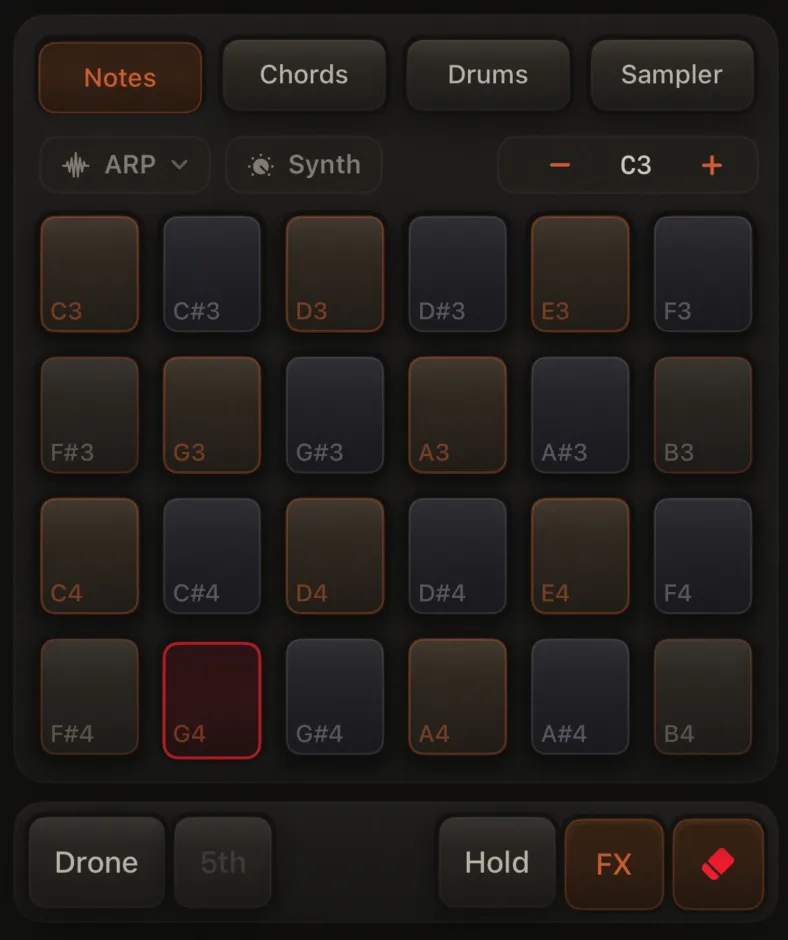
When erase works
- Erase mode is on
- Playback is running
- You're not playing an arrangement
On synth tracks (Notes & Chords)
- Select the track you want to edit (T1–T8)
- Turn on Erase
- Press Play
- Press and hold the pad for the note or chord you want to remove
What happens:
- The first matching hit when you press is removed right away
- While you keep holding, more matching hits are removed each time the loop comes back to them
- The pad glows red while you hold
- Nothing plays and nothing new is recorded
In Chords mode, erase targets the chord you recorded (including 7th or sus voicings).
On drums
On the Drums screen with Erase on, hold the drum pad you want to clean up. Same behavior as synth tracks.
With MIDI input enabled, a matching note-on in Notes, Drums, or Sampler mode starts the same erase hold (see MIDI input).
On sampler pads
On the Sampler screen with Erase on, hold the sampler pad whose recorded loop hits you want to remove on the selected Sample track. Same playhead-scrub behavior as Notes and Drums.
Erase does not remove the sample from the pad — it only deletes matching hits from the loop. To remove a pad's audio file, use Clear pad (Sampler extras, dashed-square icon) or Clear on the pad settings sheet (Sampler Edit mode).
Clear pad (Sampler only)
On the Sampler screen with a sample track, tap the dashed-square icon in the extras row, then tap a loaded pad to remove its sample. This is not erase — it clears the pad assignment, not loop recordings.
Clear pad, Chop, and Erase cannot be on together.
Erase, Hold, ARP, Chop, and Clear pad
| If this is on… | What happens when you press a pad |
|---|---|
| Erase (while playing) | Erases — highest priority |
| Clear pad (Sampler, tap) | Removes sample from tapped loaded pad |
| Chop (Sampler, Pads layout) | Arms or commits chop slices — blocks Erase and Clear pad |
| ARP (preset on selected track) | Starts or switches arpeggio |
| Hold (Notes, ARP off) | Toggles latched note on/off |
Hold and ARP cannot be active together on the selected track — the Hold button is disabled while ARP is on. Chop, Clear pad, and Erase cannot be on at the same time.
Undo
Tap Undo to bring back erased hits one at a time, before undoing recording passes.
Related
- Grid editor — move, resize, and delete recorded hits on a grid
- Hold mode
- MIDI input
- Sampler (Chop mode)
- Transport & looping