Songs, loops & arrangement
ARC-24 organizes your work in three layers:
| Layer | What it is |
|---|---|
| Song | Your project: name, tempo, sample pad pool, all loops, and arrangement |
| Loop | One section you can edit: length, key, recordings, sounds, and mix |
| Section | Part of an arrangement — picks a loop and how many times it plays |
Saving and loading songs
Open the song list (header icon):
| Action | What it does |
|---|---|
| Save | Saves the current song (save or save-as first if it's new) |
| Save As | Saves a copy under a new name |
| New | Starts a blank song |
| Load | Opens a different song |
| Delete | Removes a song |
| Rename | Tap the song title in the header (when the song is saved) |
If the bundled demo is not already in your library, Setup → Help & About → Restore Demo copies it in under a new name and loads it.
Songs sync through iCloud when you're signed in with the same Apple ID and iCloud Drive is on. Otherwise they're stored on your device.
ARC-24 does not watch iCloud in the background. The song list refreshes from disk when you:
- Open the song list
- Return to the app after it was in the background
Give iCloud a moment to download new files on a second device, then open the song list (or reopen the app) to see them.

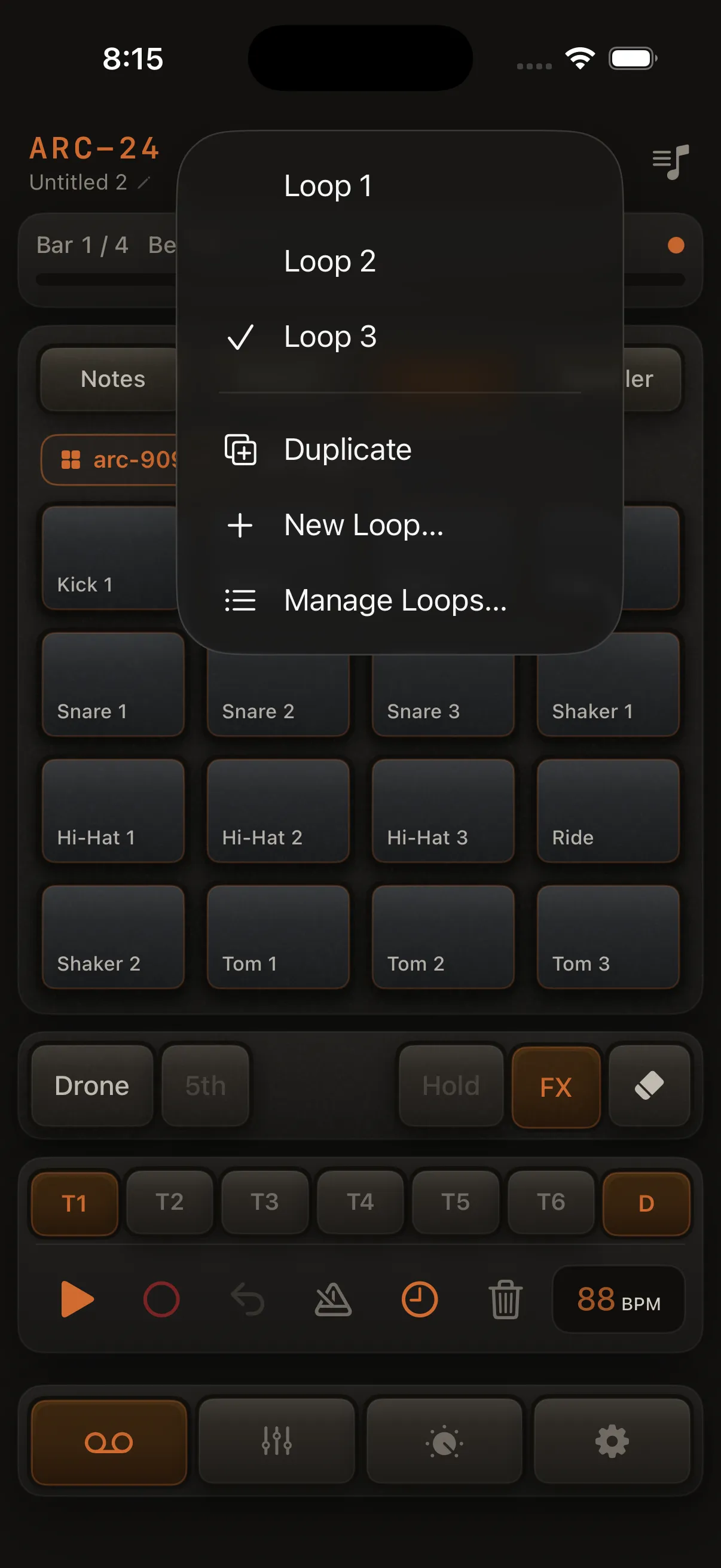
Loop pill (header)
When a song is saved, a loop pill appears under the song title showing the active loop name.
Tap it to:
- Switch loops for editing (stops playback)
- Duplicate a loop
- Create a new loop
- Open Loop Manager to rename, delete, or reorder loops
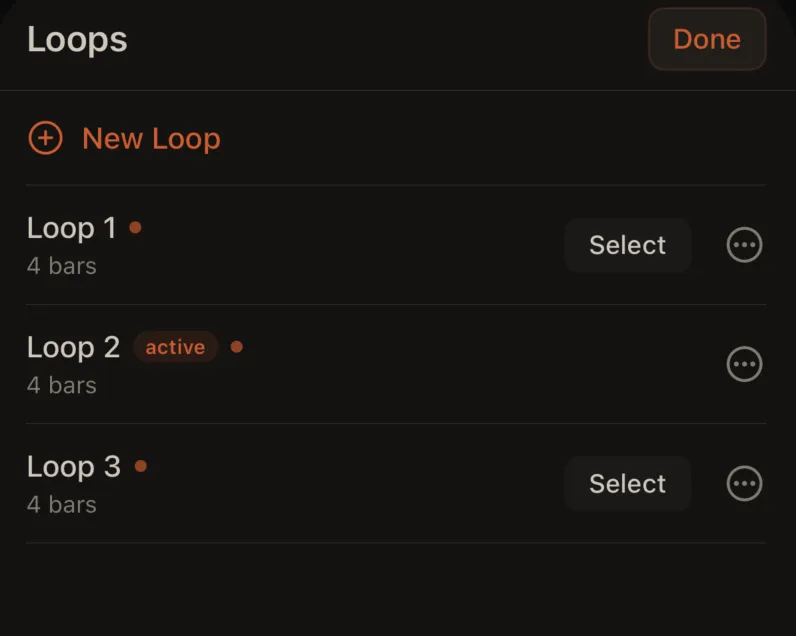
Loop Manager
From the loop pill, open Loop Manager to:
- Rename loops
- Delete loops (this removes that loop's recordings and settings)
- Reorder loops in the list
Each loop is independent — it can have its own length, key, recordings, per-track drum kits, mixer settings, and per-track instrument (Synth / Sample / Drums) and Keys settings.
Sample audio files are shared across all loops. Duplicating a loop copies its recordings, not duplicate WAV files.
Creating a new loop
From the loop pill → New Loop:
- Enter a name (or accept the suggested name)
- You get a fresh loop (default length, no recordings yet)
- Build it up with new parts and sounds
Arrangement
Open Arrange from the song list to build a longer piece from your loops.
Sections
Each row in the arrangement is a section:
- Loop picker — which loop plays in this section
- Repeat count — ×1, ×2, ×3, or ×4 (total bars = repeats × loop length)
- Drag handle — drag to change the order

Play Arrangement
Tap Play Arrangement to hear the full timeline from start to finish. This is separate from pressing Play on the main performance screen (which loops one scene).
While an arrangement is playing:
- The timeline shows which section and bar you're in
- You can't play the pads on the performance screen
- Stop the arrangement to go back to editing loops
Export full song
You need at least one section in your arrangement. See Export.
Related
- Live loop scenes — switch loops during a live performance without stopping
- Getting started
- Export